A table that turns into cards on a phone: one option in a free React data grid
A wide table on a phone means scrolling sideways and losing your row. The free DataGrid draws each row as a card below a width you choose; here is what keeps working, what stops, and how it behaves on a million rows.
 KanuniLabs6 min read
Open a wide table on a phone and the same thing happens every time. The first two columns fill the screen, the rest are somewhere to the right, and as soon as you scroll sideways to read a price you lose the row you were on. Shrinking the text does not fix it, and neither does hiding columns, because the column you hid was the one somebody needed.
A phone does not want a table. It wants a list where each item carries its own labels. The free DataGrid does that switch for you: below a width you choose, every row is drawn as a card, and above it you get the table back. The option is cardView, it is in the free packages (@kanunilabs/datagrid-react and @kanunilabs/datagrid for plain JavaScript), and it needs no licence key.
The demo lets you try it without a phone. The grid compares its own width with the breakpoint, not the screen's, so three buttons above it resize the box the grid sits in: phone, tablet and full width. The rows are the 240 order lines of Online Retail II the earlier demos use, and one button loads all 1,067,371 lines. The screenshots use the Amber colour scheme with the Framed layout, both from the Theme Builder.
The same grid, two shapes
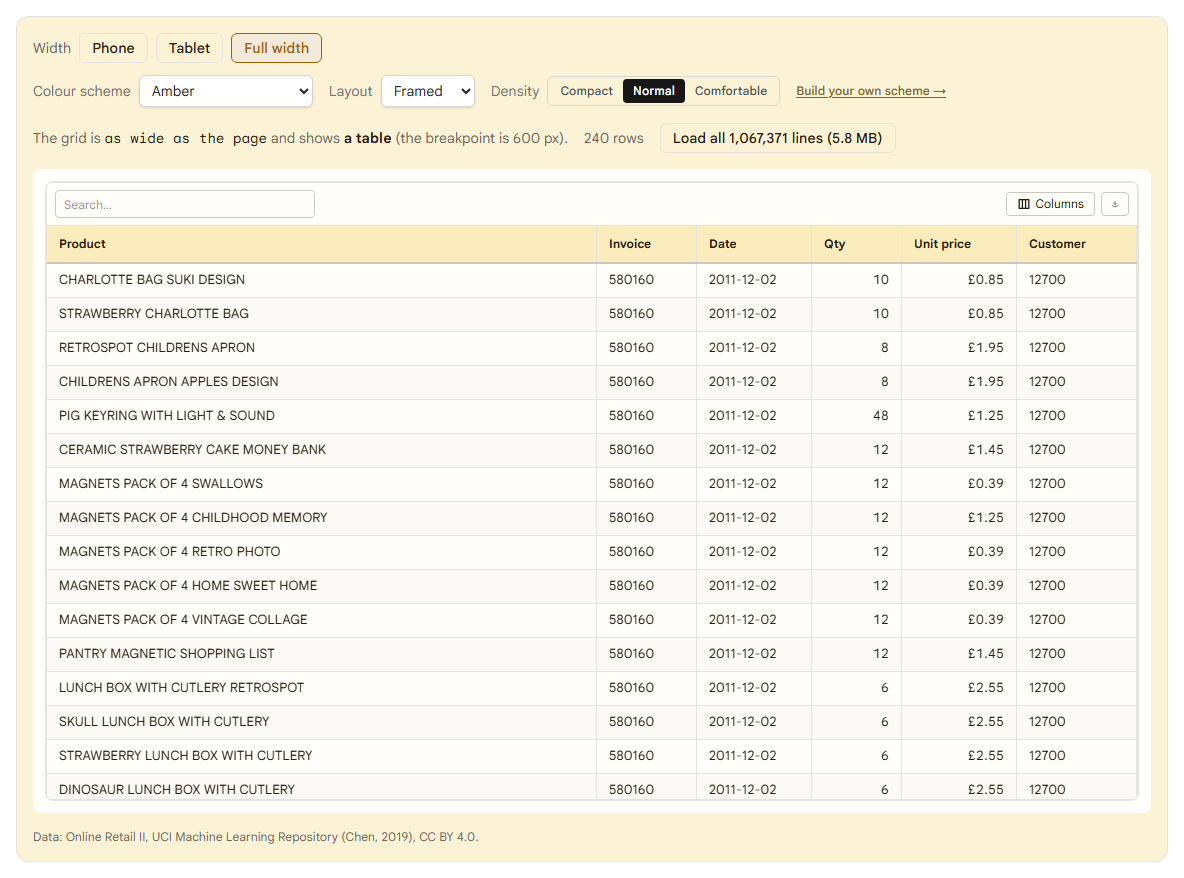
At full width this is an ordinary table: six columns, a header, a search box.
Here is the same grid in a 390 px box, the width of many phones held upright:
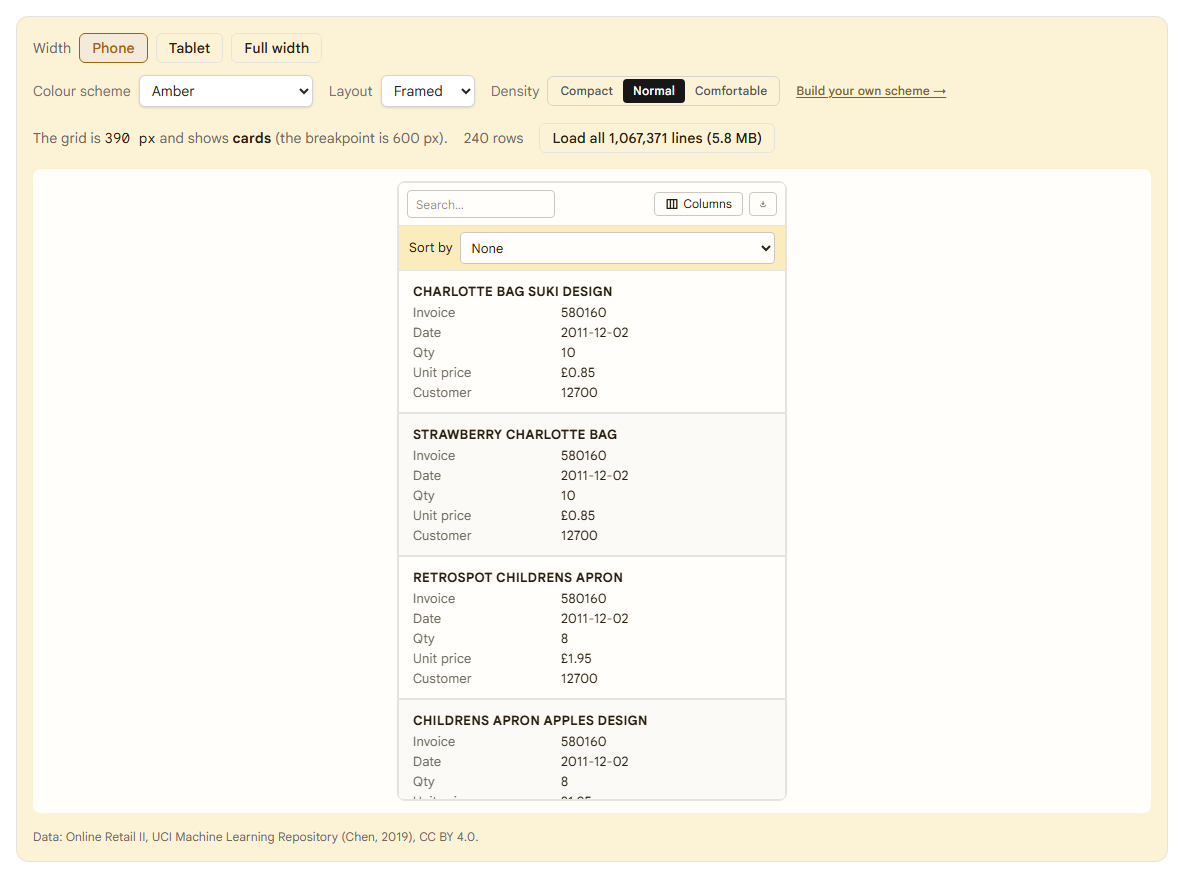
The product is the title, the other columns become labelled lines, and the column headers are gone. Nothing was written for this view. The code is the table's code with one more option:
import { DataGrid } from '@kanunilabs/datagrid-react';
import '@kanunilabs/datagrid-react/styles.css';

<DataGrid
  gridId="orders"
  dataSource={rows}
  rowKey="id"
  columns={columns} // the first column is each card's title
  toolbar // quick search stays on top
  cardView={{ breakpoint: 600 }}
  onCardViewChange={(active) => setCards(active)}
/>
cardView={true} uses the default breakpoint, 600 px. columns inside the option lists the fields to show on a card and their order, if the card should carry fewer lines than the table has columns. onCardViewChange tells your app when the grid crosses the breakpoint, which is useful if a toolbar button or a side panel should change with it. In our demo it only feeds the sentence above the grid.
One decision is yours: the first column is the title, so put the column that says what the row is first. In an order list that is the product; in a customer list, the name. If your table starts with an ID, the cards will too.
Where the breakpoint sits
Because the grid measures itself, 600 px is not "a phone". It is a narrow grid. The same page at 720 px, a tablet held upright, stays a table:
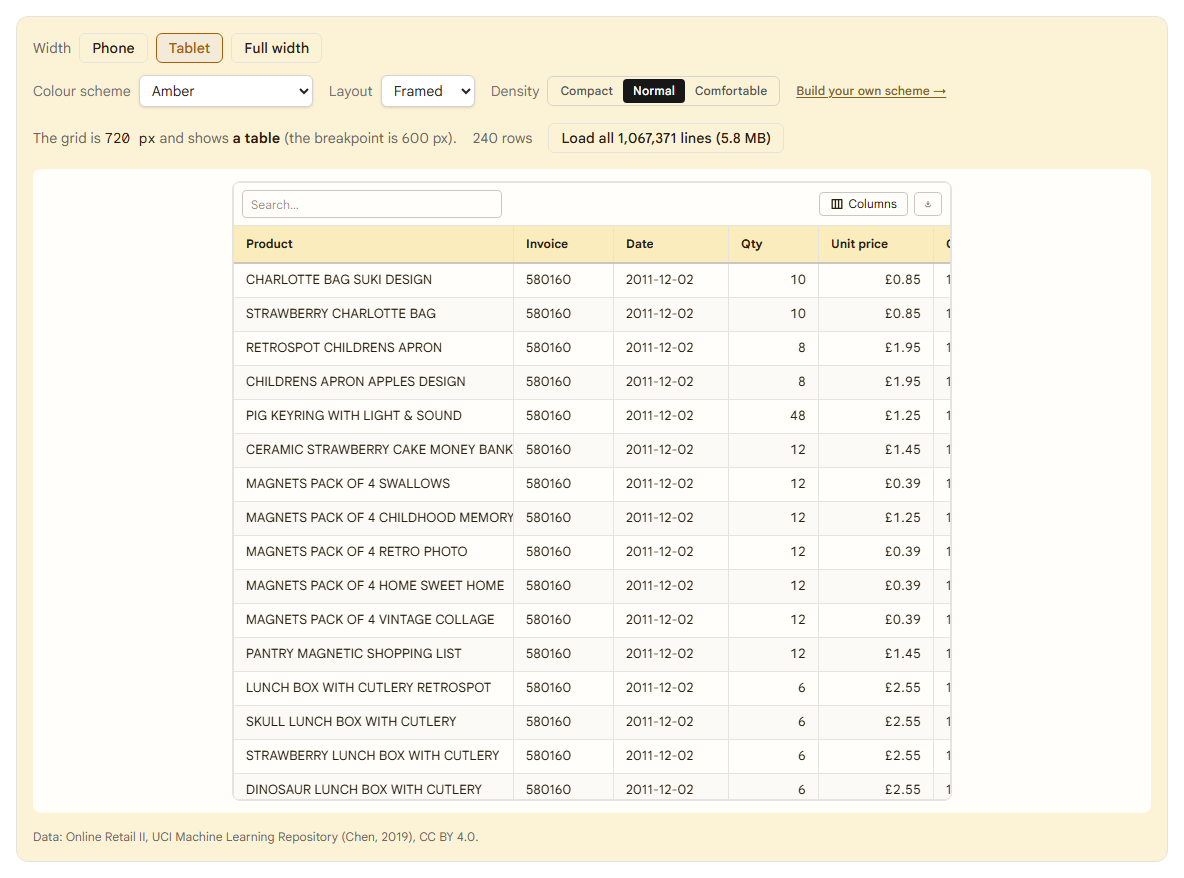
And a grid in a 500 px side panel on a desktop switches to cards even though the screen is wide. That is usually what you want: a detail panel next to a list is as cramped as a phone. If you want the cards at every width, give the breakpoint Infinity.
What keeps working
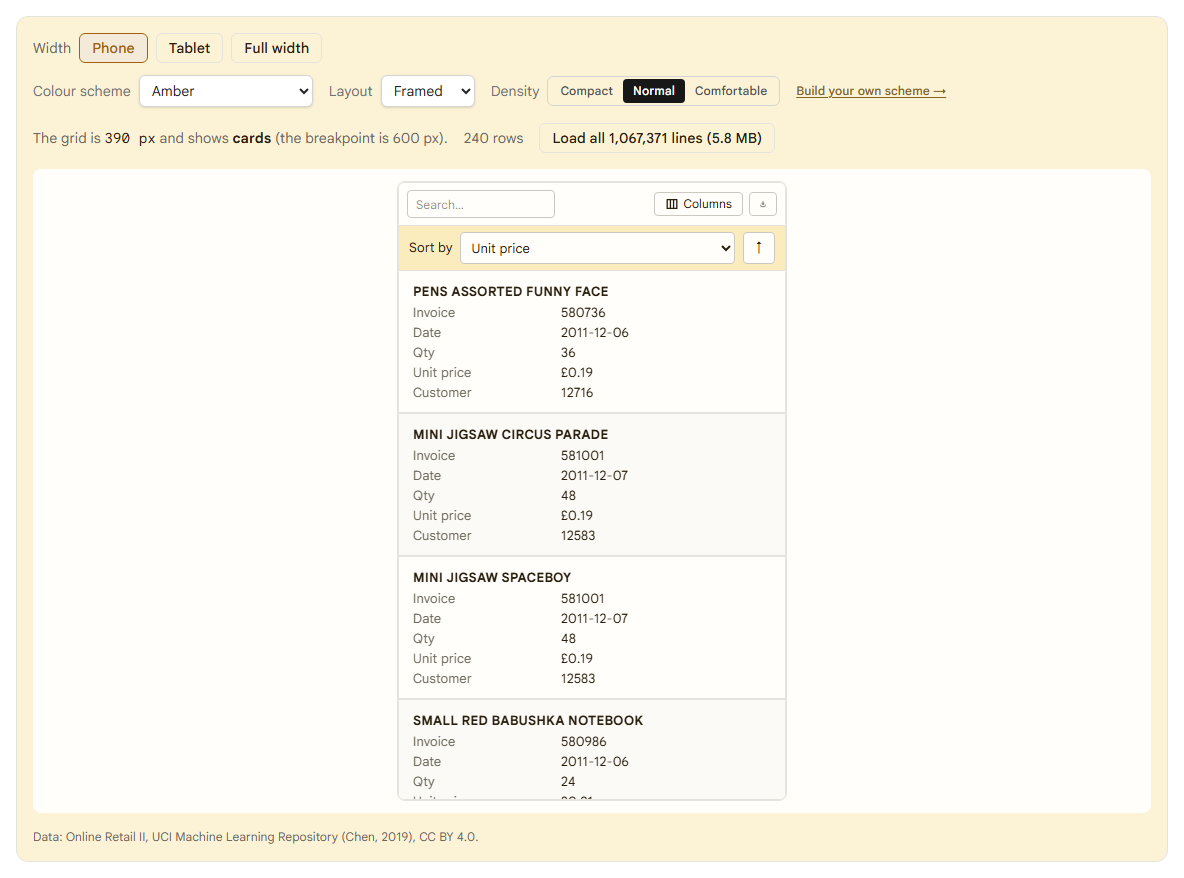
Sorting, filtering, searching, selection, grouping, virtual scrolling and remote data work on cards. The headers give way to a Sort by control with a direction button:
The search box stays at the top, and the cards are the rows that match:
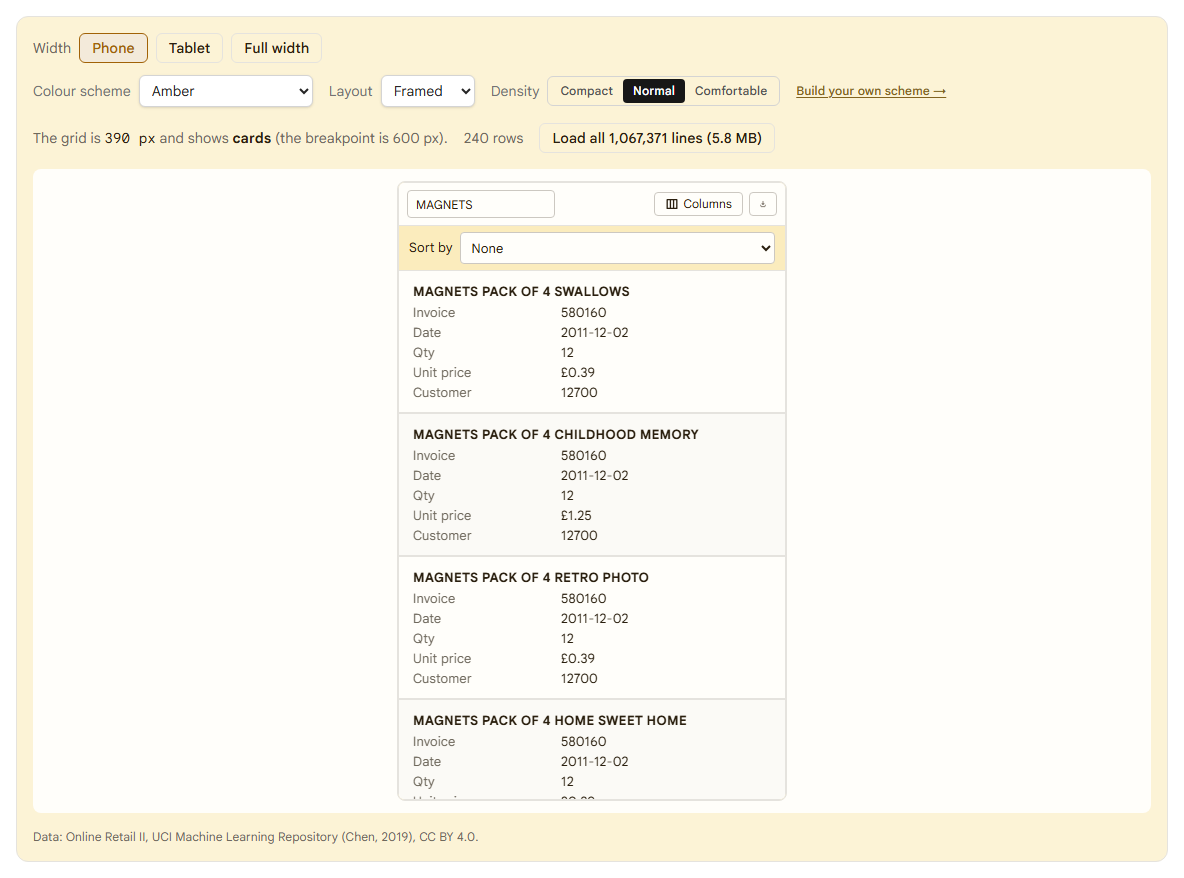
We exercised sort and search in the demo; the others are in the docs' list and we did not build a screen for each.
A million cards
Cards are taller than table rows, and a phone has less memory than a laptop, so we checked the case that would hurt. With all 1,067,371 lines loaded, the grid draws the cards on screen and nothing else:
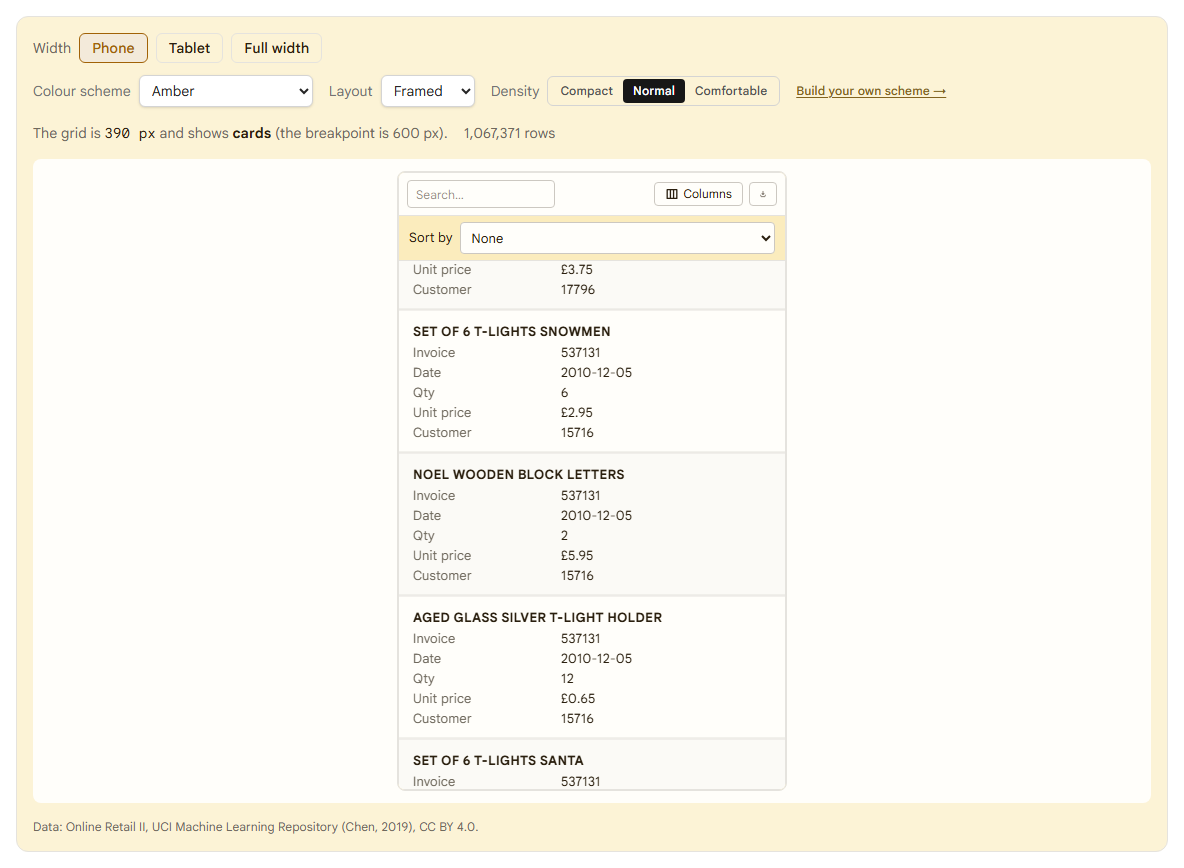
On a laptop with a production build, in Chrome, we measured three runs and give the range:
| What | Result |
|---|---|
| Cards in the page with 240 rows, or with 1,067,371 | 9 either way |
| Elements inside the grid with 1,067,371 rows | 217 |
| One card (title and five lines) | 143 px tall |
| Table to cards, from the click to the grid reporting cards | 117 to 126 ms |
| Cards to table | 86 to 89 ms |
| Jump from the top to the middle or the end of the list | 62 to 83 ms until the first card is drawn |
| Search for LUNCH BAG across all 1,067,371 lines | 1.9 to 5.7 s until the first matching card |
| JavaScript heap with the whole dataset loaded | 252 to 365 MB |
Some caveats. Those are laptop numbers: we did not run them on a phone, and a phone will be slower, mostly on the search and the download. The search is the slow part: a quick search over a million lines took between two and six seconds, which is fine for a desk and long for a thumb. And the heap, 250 to 365 MB, is the cost of holding a million row objects in the browser, which is why a phone-sized screen with that much data usually belongs behind a server data source. The cards themselves cost almost nothing: nine of them are in the page whatever the row count.
What changes on a card
Anything that needs a cell stands down while the cards are shown: in-cell editing, range selection, the fill handle and column resizing. A card shows each field's text, with the column's formatter applied, so a price reads as £0.85, but a renderCell you wrote for the table is not used on a card. While cards are shown they also replace renderRow.
That is the honest limit. If a screen has to edit rows on a phone, the card is a place to read and pick, and the edit goes through a form of your own, or through the edit modes that open a record as a form or a dialog.
Free and paid
cardView, onCardViewChange, the Sort by control, quick search, sorting, selection, virtual scrolling and remote data are in the free packages, in React and in plain JavaScript through createGrid. No licence key and no watermark. The things that stand down on a card, range selection and the fill handle, are Enterprise features on a table.
Try it
Open the demo on your phone and the grid will already be cards, since the box is as wide as your screen. On a laptop, switch the width, load the full dataset and scroll. The option is described under cards on narrow screens in the docs.
Disclosure: this article was drafted with AI assistance. Every screenshot and every number in the table came from a production build of the demo, run on a laptop in October 2026.