Cell, batch, row, form or popup: five ways to edit a table in React, all in the free grid
An editable table can save each cell as it is typed, collect changes and save them together, or open a whole record as a row, a form or a dialog. What each mode hands your app, which screen it suits, and the one line every mode but the first needs. Shown on 240 real order lines with a free React data grid.
 KanuniLabs6 min read
Most admin screens end up with an editable table, and the first question is not how to put an input in a cell. It is when a change counts. Should a price be saved the moment someone presses Enter, or only after they have checked the whole order? Should a customer record open in place, under the row, or in a dialog?
Our DataGrid answers that with one option, editing.mode, and since the 16 October release all five modes are in the free packages: @kanunilabs/datagrid-react 1.8.1 and @kanunilabs/datagrid 1.9.1 for plain JavaScript. No licence key, no watermark. This post goes through the five on the same 240 real order lines and shows exactly what each one hands to your code.
The demo loads only the free package. The order lines are the last 240 product lines sold to customers in France in December 2011, from the Online Retail II dataset. The screenshots use the Emerald colour scheme with the Elevated layout; you can switch both in the demo, or make your own scheme in the Theme Builder.
The one option
import { DataGrid } from '@kanunilabs/datagrid-react';
import '@kanunilabs/datagrid-react/styles.css';

<DataGrid
  gridId="orders"
  dataSource={rows}
  rowKey="id"
  columns={columns}
  editing={{
    mode: 'batch', // 'cell' | 'batch' | 'row' | 'form' | 'popup'
    onSave: async (changes) => {
      await api.save(changes);
      setRows((current) =>
        current.map((row) => {
          const change = changes.find((c) => c.rowKey === row.id);
          return change ? { ...row, ...change.values } : row;
        }),
      );
    },
  }}
/>
Every change that reaches onSave carries the row key, values with the changed columns only, and oldValues with what they were before. Columns with editable: false stay closed. In the demo that is Invoice, Date, Stock code and Customer; only Product, Qty and Unit price can be changed.
Cell: every value is saved on its own
cell is the free grid's default. Double-click a cell, press F2 or just start typing; Enter commits and moves down, Tab moves to the next editable cell, Esc cancels. The grid writes the new value into the row and calls onSave with that one change.
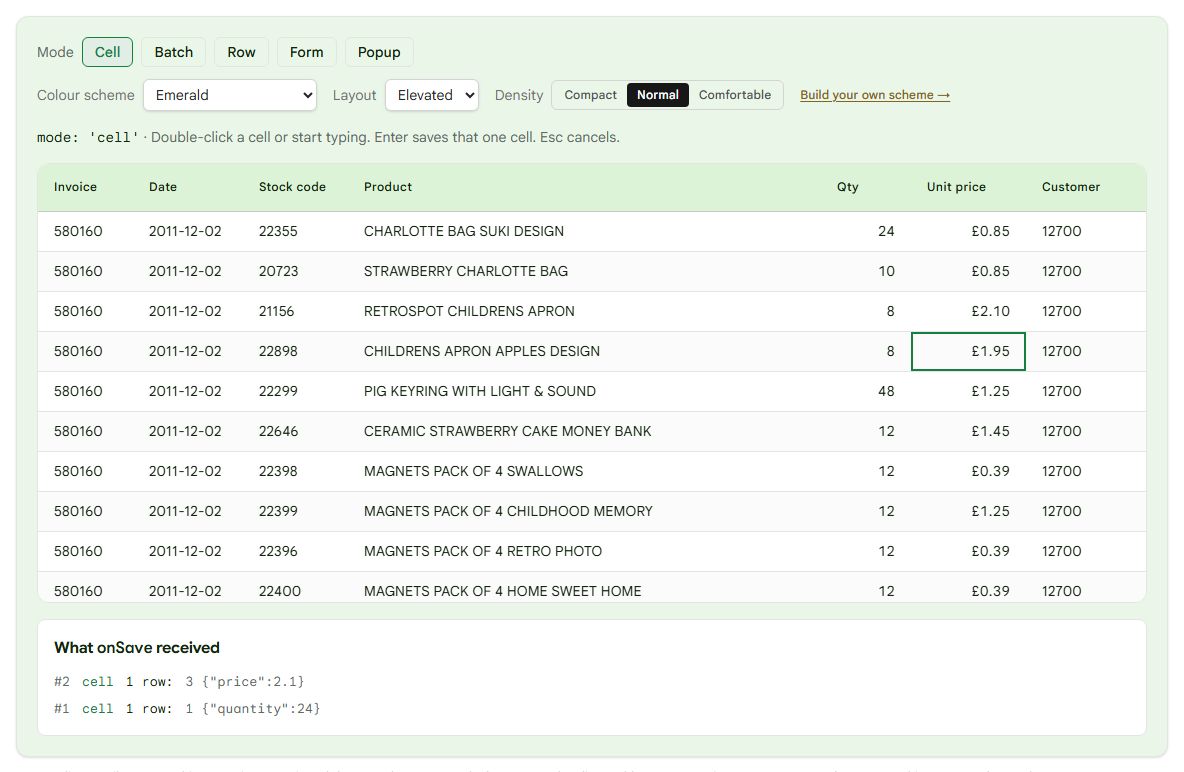
Two edits in the screenshot, two calls: {"quantity":24} for row 1, then {"price":2.1} for row 3. This suits a table where each value stands on its own, such as a stock count or a list of settings, and where an auto-save is what users expect. It does not suit a change that only makes sense together with another one: the first half is saved before the second is typed.
Batch: change many cells, save them together
In batch mode nothing is saved while the user types. Changed cells get a small marker in their corner, and a Save / Cancel strip appears above the grid with the number of rows waiting.
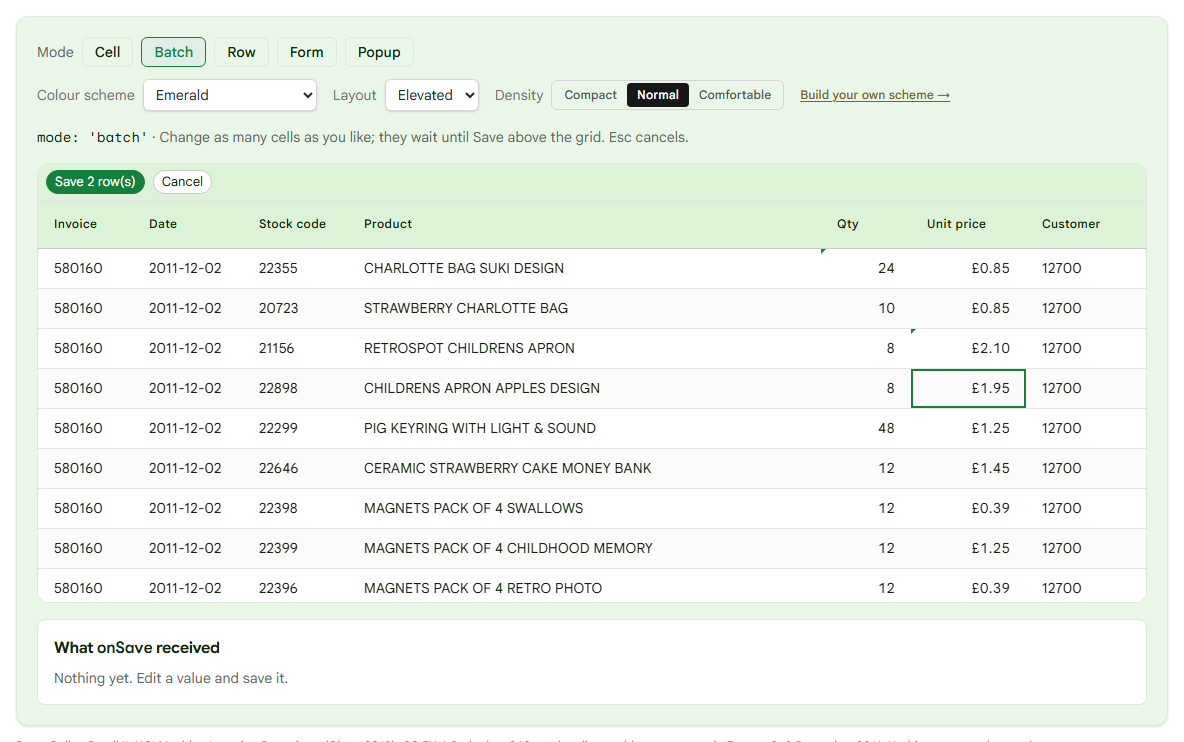
Save sends everything in one call: both rows, each with only the column that changed.
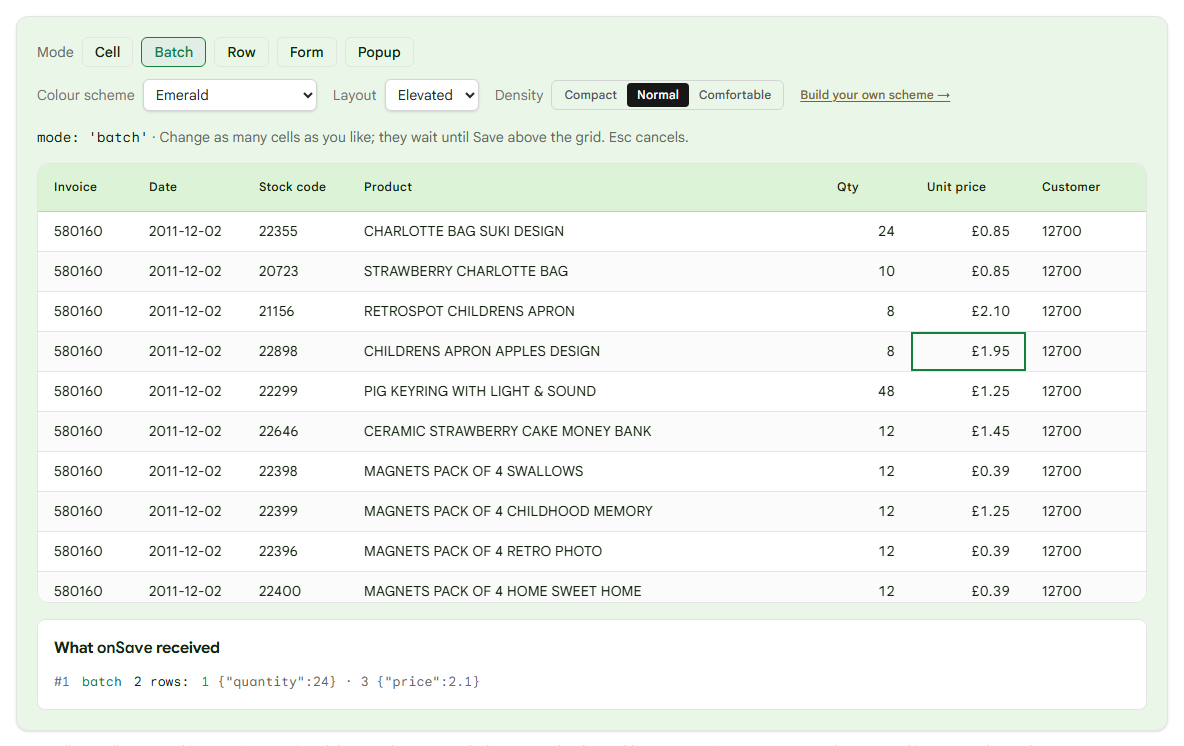
Cancel puts every cell back. This is the mode for a screen where someone reviews a set of numbers before committing them: a price list, a budget, an order that is checked line by line. It also gives your server one request to accept or refuse as a whole.
Row: open one record in place
row opens every editable cell of one row at once, by double-click or by Edit row… in the row's right-click menu. The strip above the grid says which row is open, with Save row and Cancel.
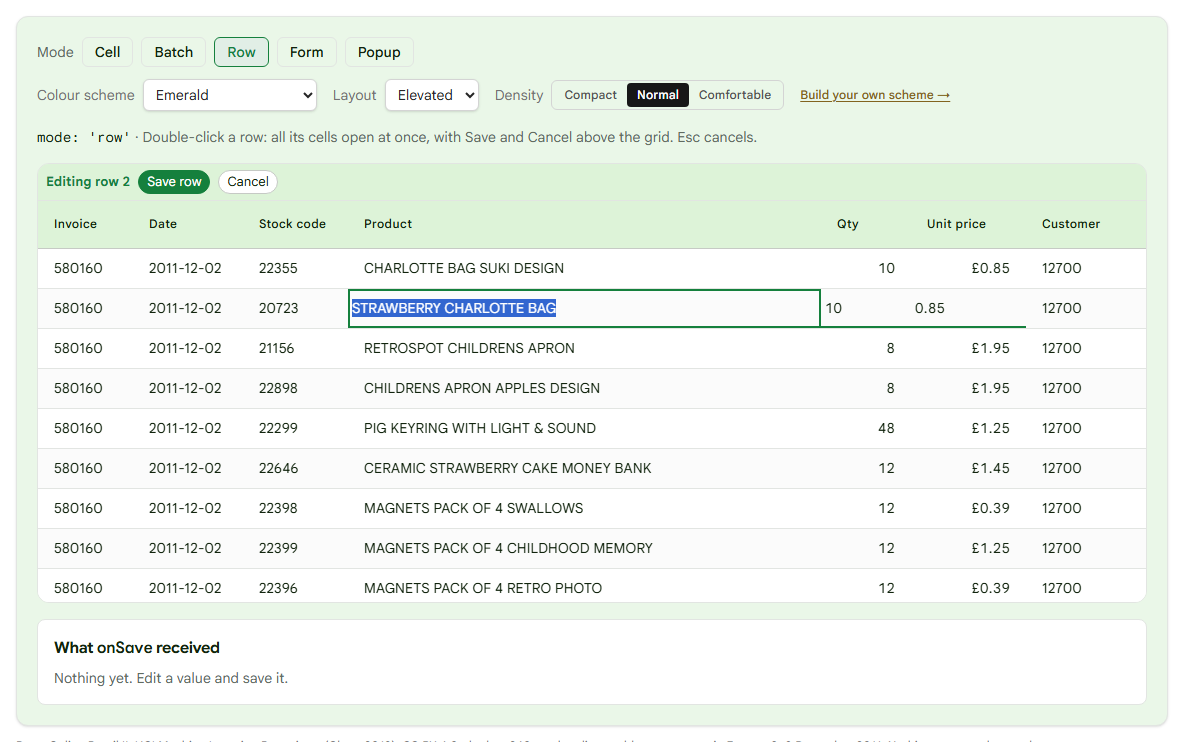
Only that row is saved. If the user has half-finished something elsewhere, it stays where it was. Use it when a record is one line of a few short fields and people edit one at a time.
Form: the same record under the row
form lays the same row out as a labelled form, opened under the row in the table's flow. Ctrl+Enter saves and Esc cancels, and the buttons are on the form itself.
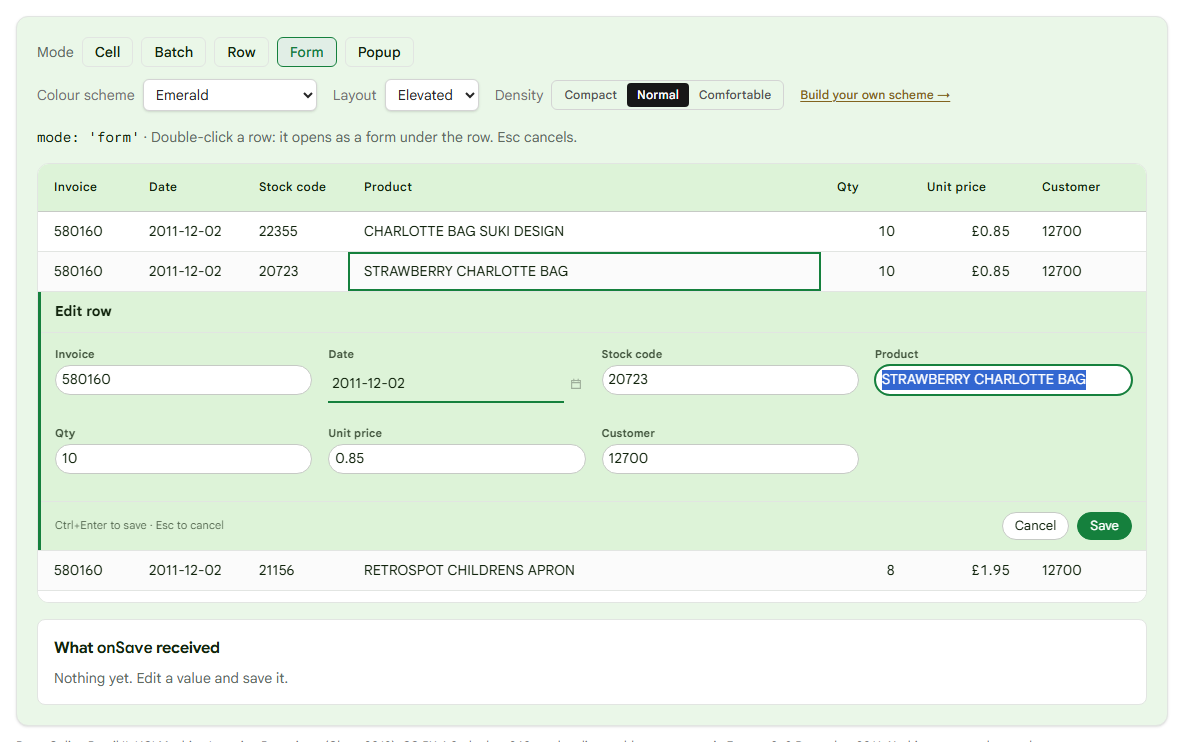
A form is easier to read than a row of narrow cells when a record has more fields than fit on the screen, or long values such as an address. Because it opens in place, the rows above and below stay visible for comparison.
Popup: the same form in a dialog
popup puts that form in a dialog over the grid.
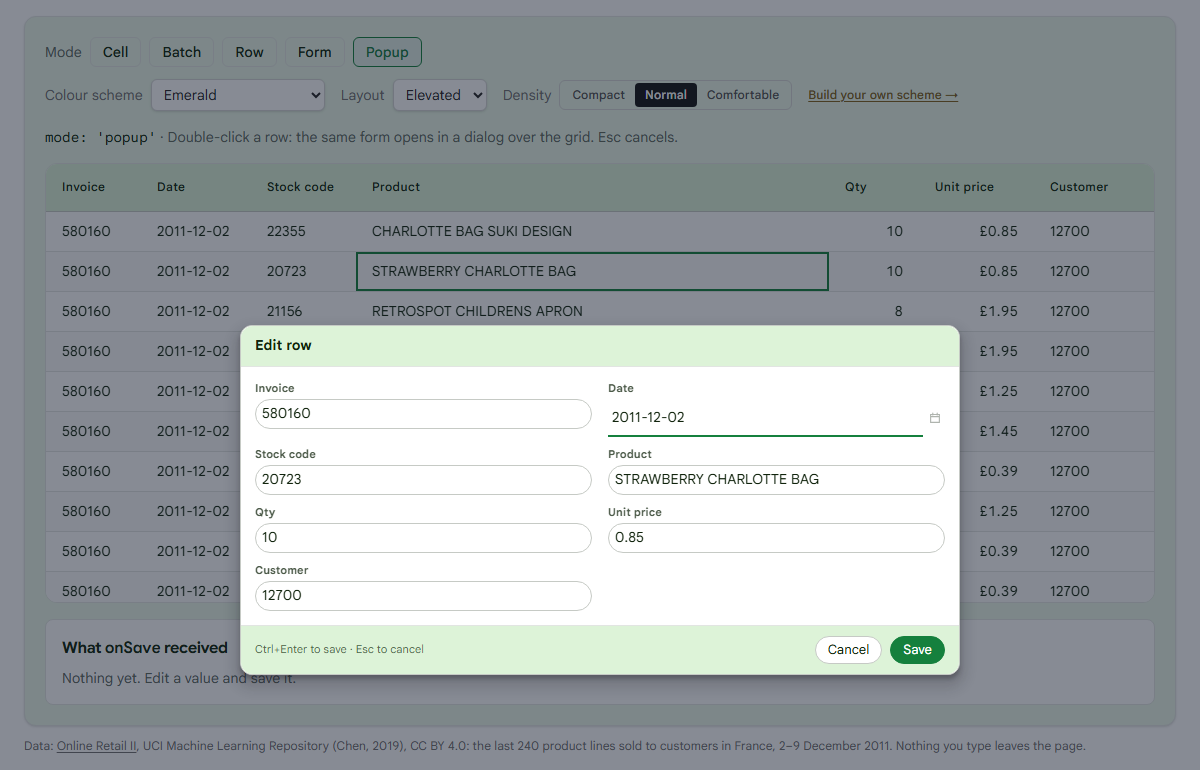
The table does not move, so this suits a long table where opening a form in the middle would push the rows the user was looking at off the screen. Row, form and popup share one editing session underneath, so Save and Cancel behave the same way in all three. They differ only in where the fields are drawn.
What this costs
In cell mode the grid writes the new value into your row object. In the other four it writes nothing into your rows: the change waits until Save, goes to onSave, and is then cleared from the grid. If your handler does not write it into your data, as the setRows call above does, the cells show the old values again after Save. That is the line every mode but cell needs, and the one most easily forgotten.
Throw from onSave and the changes stay pending, so a refused save loses nothing the user typed.
Two things we noticed while taking these screenshots, both on our to-do list: in the form and the dialog, the fields of editable: false columns are locked but look the same as the open ones; and in row mode the number editors align their values to the left while the cells align them to the right.
Free and paid
The five modes, the Save / Cancel strip, the edit form and the dialog, valueParser and valueSetter, and the same modes in plain JavaScript through createGrid are free. Validation rules, adding and deleting rows, per-row permissions, lookup and custom editors, undo and redo, and range selection with fill and paste are in the Enterprise edition. The order editing demo shows validation and undo on the same rows, and the pricing page has the rest.
Try it
Open the demo, switch the mode, change a few quantities and prices and watch what onSave receives. The editing docs cover each mode and its keys, and an earlier post goes deeper into what a batch save should send to a server and what happens when the server says no.
Disclosure: this article was drafted with AI assistance. Every screenshot was taken from the live demo, and every payload shown was logged by it, in October 2026.